Cursor AI Tutorial: How to Use the AI-Native Code Editor

Cursor AI is a code editor based on a fork of Visual Studio Code, with AI integrated as an agent, not just smarter autocomplete, but a collaborator that reads your entire project, understands context, edits across multiple files, and runs terminal commands. In 2026, Cursor became a reference for developers who want real productivity gains with AI, alongside GitHub Copilot.
In this tutorial you will learn how to install Cursor, master the main shortcuts (Composer, Cmd+K, Cmd+L, Tab), pick which models to use (Claude, GPT, Gemini), understand the paid plans, and discover the practices that actually multiply your speed.
What Cursor AI Is and Why It Took Off
Cursor is an IDE built by Anysphere, launched in 2023, that uses VS Code as its base but rewires the experience around AI. Instead of treating AI as a plugin (the Copilot model), Cursor puts it at the center: AI sees your whole workspace, runs across multiple files, and has agents that make decisions without confirming every step.
The practical difference? When you ask “refactor this auth logic to use JWT,” Cursor does not just give you a single-line suggestion, it identifies the relevant files, proposes changes across all of them at once, shows a complete diff, and executes when you approve. It is a leap from “autocomplete” to a real “pair programmer.”
In 2026, Cursor is used by teams at OpenAI, Stripe, Shopify, and thousands of startups. The combination of a familiar UI (VS Code) with genuinely agentic AI won over developers tired of limited solutions.
How to Install Cursor AI
Installation is straightforward and works on Windows, macOS, and Linux:
1. Go to cursor.com and click “Download.”
2. Install the app. The installer is similar to any other app — run it and follow the prompts.
3. Sign in. You can use GitHub, Google, or email. Login is required to access AI models.
4. Import VS Code settings (optional). On first launch, Cursor offers to import your settings, extensions, keybindings, and theme from VS Code. Recommended if you already use VS Code, your productivity does not start from zero.
5. Open a project. Use File > Open Folder or drag a folder onto the window. Cursor indexes the project in the background to provide context to the AI.
Indexing happens locally (chunks are sent to AI as needed, encrypted). For companies with privacy requirements, Privacy Mode prevents code from going to Cursor’s servers.
The Four Core Cursor Features
Most of Cursor’s magic lives in four shortcuts. Mastering these four is what separates people who use Cursor “like VS Code with Copilot” from people who actually extract its full productivity.
1. Tab, Smart Autocomplete
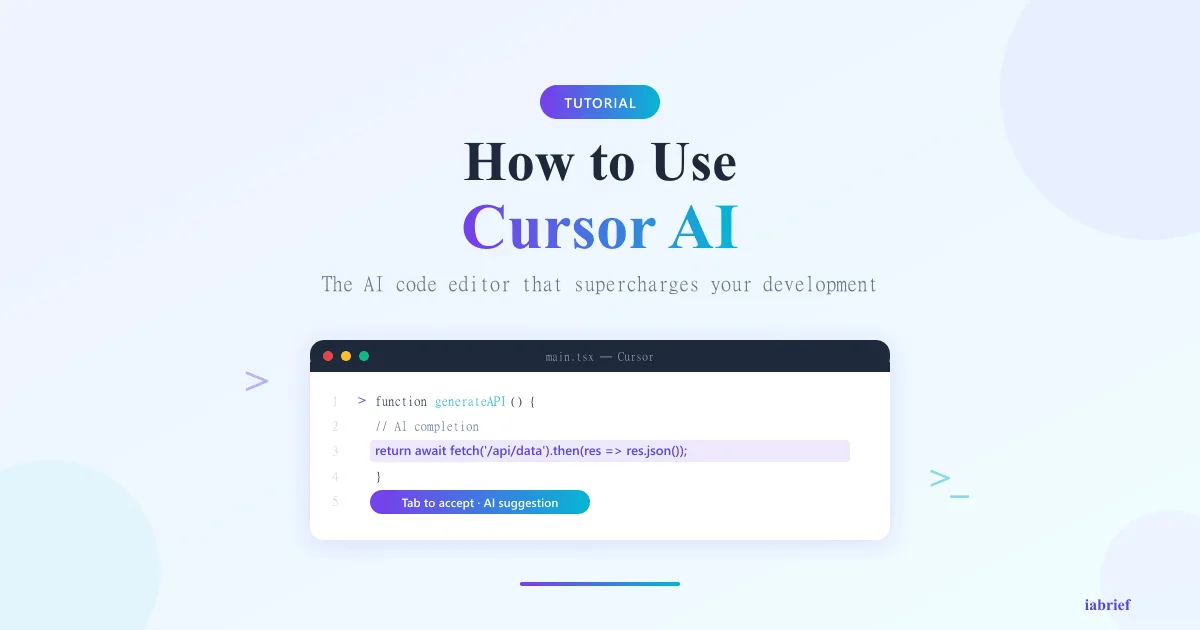
Cursor’s autocomplete (triggered with Tab) is more aggressive than GitHub Copilot’s. It predicts not just the next line, but full blocks, multi-line refactors, and even adjacent line edits.
You type part of a function and press Tab to accept. If you want alternatives, Esc cancels and Tab tries a different suggestion. The model learns from the active file and other open files.
2. Cmd+K — Inline Editing
Select a code snippet, press Cmd+K (Ctrl+K on Windows/Linux), and describe what you want changed:
“Add email validation and error handling with try/catch”
Cursor shows an inline diff, and you accept or reject it. This is the ideal shortcut for surgical edits in existing code, small refactors, optimizations, syntax conversions.
3. Cmd+L, Chat With Context
Open the chat panel with Cmd+L (Ctrl+L on Windows/Linux). It is like talking to ChatGPT, but with your code as context.
You can drag files into the chat or use @ to reference specific functions, classes, or files:
“Why is
@authMiddlewarerejecting valid tokens? Compare with@tokenValidator.”
The chat understands the project and gives answers based on the actual code, not generic guesses.
4. Composer — Multi-File Agent Editing
Composer (Cmd+I or Ctrl+I) is the most powerful feature. Instead of editing a single snippet, you describe a change that spans multiple files:
“Migrate all auth from cookies to JWT. Update backend, frontend, and tests.”
Composer plans, shows the affected files, generates the full diff, and executes when you approve. In agent mode (more autonomous), it can run terminal commands, install dependencies, run tests, check errors, and fix them iteratively.
How to Choose the Model (Claude, GPT, Gemini)
Cursor does not force a single model — you choose. In 2026, available models include:
| Model | Strong at | When to use |
|---|---|---|
| Claude 3.5 Sonnet / Claude 4 | Refactoring, complex reasoning, clean code | Default for most projects |
| GPT-4o | Speed, multimodal, general code generation | When you need quick turnaround |
| GPT-4 Turbo / o3 | Complex algorithms, advanced debugging | Problems that need deep reasoning |
| Gemini 2.0 | Large context window, low cost | Analyzing large codebases |
| cursor-small | Fast autocomplete | Tab completion (default) |
To switch models, open the chat (Cmd+L) and click the selector at the bottom. Each conversation can use a different model. For important decisions (large refactors, complex debugging), Claude 3.5 Sonnet usually delivers the best balance of quality and cost.
You can also use your own API keys (OpenAI, Anthropic) if you prefer paying providers directly or have corporate quotas.
Cursor Plans and Pricing
Cursor structures access in three main tiers:
| Plan | Monthly price | Included quota | Premium models |
|---|---|---|---|
| Hobby | Free | Reduced quota (few requests/day) | Basic models |
| Pro | $20 | 500 fast premium requests/month + unlimited slow | Full access (Claude, GPT-4, etc.) |
| Business | $40/user | Everything in Pro + admin | Stronger privacy, SSO, central billing |
There is also a 14-day free trial when you create the account, useful to evaluate before subscribing. “Fast requests” are low-latency calls to premium models; after the cap, you keep going but in “slow” mode (slower queue).
For most individual developers, the Pro plan is worth it, 500 requests/month is enough for heavy use. Companies with more than 5 developers usually prefer Business for admin control.
Cursor AI vs GitHub Copilot: Real Comparison
The two leading AI coding assistants have different strengths:
| Criterion | Cursor AI | GitHub Copilot |
|---|---|---|
| Base editor | VS Code fork | Plugin for VS Code, JetBrains, Neovim |
| Multi-file editing | Native Composer | Limited (Workspace agent) |
| Model choice | Multiple (Claude, GPT, Gemini) | GPT-4 turbo, Claude (some tiers) |
| Pricing | $20/month (Pro) | $10–$39/month |
| GitHub integration | Indirect | Native (PRs, issues) |
| Tab speed | Very fast | Fast |
| Privacy mode | Yes | Yes |
| Maturity | 3 years | 5+ years |
Choose Cursor when: you want agents that edit multiple files, model choice, and the best contextual autocomplete.
Choose Copilot when: you prefer staying on stock VS Code without a fork, you have deep GitHub integration (PRs, Codespaces), or you are on Microsoft Enterprise.
For many developers, it is worth running both for the first few days and picking the flow with less friction. Our GitHub Copilot tutorial covers Copilot in detail.
Real Cursor AI Use Cases
Cursor shines in specific situations:
Refactors that touch multiple files: renaming an API, updating TypeScript types across all modules, migrating from one library to another. Composer delivers in minutes what would take hours manually.
Debugging with distant root causes: with @file and Cmd+L, you give the model exact context of the bug, logs, stack trace, related code. The model spots patterns humans miss.
Onboarding in large codebases: new developers on legacy projects can use chat to understand what each module does. “Explain the auth flow in this project” returns concrete answers based on the real code.
Test generation: “Write unit tests for @myFile covering all edge cases” produces complete suites ready to run.
Automated documentation: “Generate JSDoc docstrings for every function in this file” produces consistent docs in seconds.
Translating between languages: “Rewrite this Python module in TypeScript keeping the logic” works surprisingly well for porting small components.
Cursor AI Limitations
Even at the cutting edge, Cursor has clear limits:
Costs can scale. On large projects with heavy use, $20/month covers basics, intensive teams can blow the cap and need bigger plans or their own API keys.
Not a plugin for other IDEs. If you need JetBrains (PyCharm, IntelliJ) or Neovim, Cursor does not fit — Copilot and other alternatives work in those editors.
Risk of unintended changes. Composer modifies multiple files. Always review the diff before accepting and use git as a safety net.
Model dependency. When OpenAI/Anthropic servers slow down, Cursor feels it. For 100% offline use, Cursor is not the right tool.
Privacy on individual plans. Even with Privacy Mode, code can pass through Anysphere’s servers for processing. For strict regulation, go with Business with SSO or evaluate self-hosted alternatives.
Shortcut learning curve. People who only use Tab are leaving 80% of Cursor’s value on the table. It is worth 30 minutes consciously practicing Composer and Cmd+K.
Tips to Get More Out of Cursor
Use @ actively in chat. Mentioning specific files, symbols, or docs with @fileName dramatically improves answers.
Keep .cursorrules in your project. This file at the repo root defines conventions (code style, technologies, patterns) Cursor always respects. It is like permanent onboarding for the AI.
Start Composer in “review” mode, not “full agent.” See diffs before accepting automatic changes until you trust the behavior.
Combine models per stage. Use Claude for refactoring (quality), GPT-4o for autocomplete (speed), Gemini for large codebase analysis (context).
Do not delegate architectural decisions to AI. Cursor executes very well what you decide, but design choices are still yours. For important calls, use the chat to explore trade-offs before asking for implementation.
FAQ
Is Cursor AI free?
There is a free Hobby tier with very limited quota and a 14-day trial with full access. For ongoing use, the Pro plan ($20/month) is required. Business is $40/user/month.
Does Cursor AI replace VS Code?
Yes, Cursor is a complete VS Code fork that keeps compatibility with most extensions. You can import settings, keybindings, and themes from VS Code. For many developers, Cursor fully replaces stock VS Code.
Can I use my own API key in Cursor?
Yes. In Settings > Models, you can configure your own OpenAI, Anthropic, Google, and other provider keys. Useful if you have a corporate quota, prefer paying providers directly, or want models not available natively in Cursor.
Is Cursor AI better than GitHub Copilot?
For multi-file editing, model choice, and contextual autocomplete, Cursor has the edge. For native GitHub integration and multi-editor support (JetBrains, Neovim), Copilot wins. Many developers find Cursor more productive, but it is worth testing both.
Does my code stay private in Cursor?
Depends on the mode. In Privacy Mode, Cursor guarantees your code is not stored or used for training. In default mode, data may be used to improve the product. For regulated environments (healthcare, finance), use Business with SSO and confirm privacy settings with the Cursor team.
Conclusion
Cursor AI represents a real shift in how code is written in 2026. It is no longer enhanced autocomplete — it is collaboration with an AI agent that understands your project, edits across files, and runs commands. Anyone who masters the four core shortcuts (Tab, Cmd+K, Cmd+L, Composer) doubles their productivity within weeks.
Start with the free trial, import your VS Code config, and spend 30 minutes practicing Composer on a real project. If you have never tried agentic AI on real code, you will likely return to your old workflow and wonder how you spent so many years typing line by line.
Related reading
To go deeper, we recommend these iabrief articles:
- OpenAI’s $852 Billion Valuation in 2026: The Largest Private Funding Round in History
- Week in AI: agents at work, Gemini in cars and AI beating doctors (May 3, 2026)
- How to Use Google Veo 3.1 to Create AI Videos: Step-by-Step Tutorial (2026)
Official sources
For deeper context, see the official sources and authoritative references below: